Plan the connections you need while working, not just the devices in your bag. A laptop charging alone overnight is a different arrangement from a laptop, phone and display connected during a meeting. Write down both before deciding whether one charger and a few cables cover the trip.
This guide is a packing workflow, not a tested laptop kit. It does not assign a universal wattage to laptops or promise that an unfamiliar meeting-room dock will work with your computer.
Record the model · Plan three setups · Check the display · Check hub power
Start with your exact laptop
Find the manufacturer’s charging guidance for the model you actually carry. Record its supported charging input, the port to use, recommended adapter power and any specified cable or charging profile. Do not assume a USB-C-shaped port accepts charging just because a cable fits.
As one manufacturer-specific example, Apple’s adapter guidance says a Mac that charges over USB-C can use a USB Power Delivery adapter or display. For the best charging experience, Apple recommends at least the wattage of the adapter recommended for that Mac. This does not establish a requirement for an unrelated laptop, and lower power is not automatically proof of no charging.
Keep the relevant manual or support page available for the trip. If the charging requirements remain unclear, keep your known, manufacturer-supported arrangement as the starting point rather than replacing it solely to reduce bag size.
Separate desk, meeting and overnight connections
Use this planning table for your actual itinerary. The examples are hypothetical; they are not claims about equipment provided by a hotel or office.
| Situation | Connections to plan | Evidence still needed |
|---|---|---|
| Working at a desk | Laptop power, plus phone power if needed at the same time | Output of the exact occupied charger ports; cable capability and reach |
| Presenting in a meeting | Laptop to display, plus a charging route | Available display input, compatible cable or adapter, and whether any charging is supplied |
| Charging overnight | Laptop, phone and accessories together or in sequence | Shared-port output if simultaneous; enough time to swap connections if sequential |
A charger with several ports is not a guarantee that every port retains its standalone maximum when another device is attached. Read the exact port-combination table for that model. The power-sharing walkthrough explains how to interpret it.
Do not count a cable as free for the phone while it is occupied by the laptop or another connection. If you intend to swap it, put that swap into the schedule and verify that the endpoints and capabilities fit both jobs. Our cable length and quantity guide covers reach and spare decisions separately.
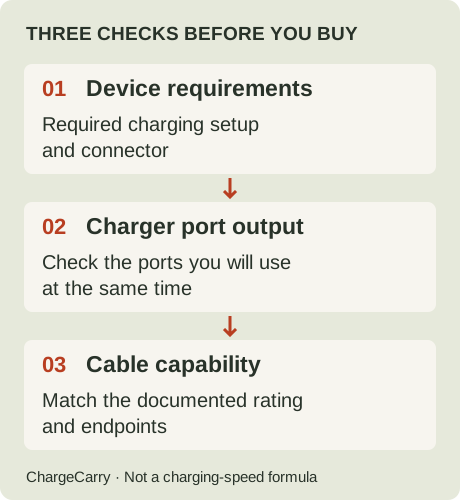
ChargeCarry illustration: repeat these checks for the actual working setup, including any change in occupied charger ports.
A display connection needs its own checks
Ask what connection the meeting room provides before choosing an adapter. Record the laptop output port, display input, required resolution and refresh rate, and the cable or adapter between them. If you need multiple displays, check that arrangement against the computer’s specifications too.
Apple’s display guidance distinguishes power for the display from its video connection and notes that ports can look similar. It also ties supported display combinations to the exact Mac model and display settings. Follow your own computer manufacturer’s equivalent guidance.
A USB-C display can be part of a charging arrangement: USB-IF describes a powered monitor charging a laptop while displaying. That is a supported use case, not proof that the screen in your meeting room supplies power. Confirm its documented output and the connection path before relying on it instead of your charger.
If a dock sits between the charger and laptop, check the dock manufacturer’s stated power delivered to the host and required input supply. Do not substitute the power adapter’s headline rating for the dock’s documented host output. Also check the dock’s computer compatibility and video requirements.
Our current cable records do not establish display suitability. Do not buy one as a monitor cable based on its charging rating. Use the charging, data and video guide to keep those requirements separate.
Does a 100W hub deliver 100W to the laptop?
Read the hub’s input limit and its power delivered to the computer as separate specifications. A large number beside a PD input port does not by itself establish the output available to your laptop through that hub.
For a concrete model-specific example, Anker’s European page for the 332 USB-C Hub (5-in-1), A8355, checked October 30, 2026, lists a 100W PD-IN port and up to 85W pass-through charging. It also says a charger is required and is not included. These are published limits for that named hub, not our measurements or a rule that every hub reserves the same amount of power. This example is not a purchase recommendation or a promise of availability in your country.
Keep a connection note with four separate checks:
| Part of the path | Record before relying on it |
|---|---|
| Wall charger to hub | Exact occupied charger port, documented output and suitable cable |
| Hub power input | Named input port and supported supply requirements |
| Hub to laptop | Documented host charging output and computer compatibility |
| Laptop requirement | Exact model’s charging guidance, including cable or profile requirements |
If your laptop’s documented setup needs more than the hub’s host-output limit, the adapter’s larger label does not fill the gap. That does not prove the laptop cannot accept any power; check lower-power behaviour with its manufacturer instead of promising either failure or full performance.
Power and display ports are separate jobs
The same Anker A8355 page specifies that its USB-C ports do not support video output, while listing an HDMI display connection. That is another reason to name the port and function, rather than writing only “USB-C hub” in a packing note. It does not establish the capabilities of another hub with the same connector shape.
For your own setup, keep the video route beside the power route. A charging indication does not verify the display mode, and a working picture does not establish that the laptop receives the charging arrangement you intended. Use the portable-monitor connection checks for the display path.
When the meeting-room dock is unconfirmed
Ask the venue for the dock model, available display input and documented host charging output. If those details are unavailable, keep them marked unconfirmed. Decide whether carrying your known charging arrangement and a separately documented display connection covers the meeting, instead of treating an unfamiliar dock as a guaranteed substitute.
Before replacing your charger, compare a direct charging route with the proposed hub route using the equipment you intend to pack. This is a planning check, not a measured speed comparison. If a phone shares the wall charger, revisit its occupied-port power allocation too; the standalone maximum is not the evidence for that session.
Walk through the busiest setup before leaving
Use the actual laptop, charger, cables and accessories you intend to pack. If the destination display is unavailable, mark that part unverified rather than treating a home screen as proof of the meeting-room setup.
- Connect the laptop through the intended charging port and check its charging indication.
- Add the phone or other device if it will charge at the same time. Check the documented allocation and the laptop’s status again.
- Connect any display or dock you have available. Verify that the required display mode is offered and that your charging route is still connected.
- Check where every device rests and whether the cable reaches without pulling on the connectors.
- Record unresolved items and the fallback you will carry or confirm with the venue.
This walkthrough can expose a missing connector or an unsupported arrangement. It is not a measurement of maximum charging speed, sustained power under every workload or battery runtime. A charging icon alone does not answer those questions.
For a Mac setup that fails to charge, use Apple’s troubleshooting guidance rather than assuming a higher-rated charger will fix it. Apple specifically advises stopping use of a cable that charges only when moved or wiggled and having the cable and power supply evaluated. Use the support guidance for your own equipment.
Pack around confirmed jobs
Keep a short packing note: laptop model; charging input; working port combination; display connection; cable reach; unresolved venue details. Check the destination socket and the input supply requirements printed on your charger before departure.
A power bank is a separate decision, not a default laptop accessory. If it solves a real gap in access to power, verify its output for the laptop and its refill arrangement; see capacity versus output. This guide does not establish airline permission for a battery or claim how long it will run your laptop.
Open the travel charging checklist, select Laptop and any other devices, then choose simultaneous charging, file transfers or an external display where relevant. Display selection suppresses the current cable examples because their records do not establish video suitability. The result can be printed; it is a list of checks, not a model-specific compatibility certificate.
For a separate USB-C charging connection whose requirements you have established, our cable comparison provides two documented records. It is not a laptop compatibility matcher. The comparison contains affiliate links; we may earn a commission from eligible purchases. Read our disclosure.
Sources and editorial note
Research by ChargeCarry. Published October 6, 2026. Updated October 30, 2026 with hub input/host-output planning; the new Anker source was checked October 30. Earlier sections retain their October 6 source-check date:
- Anker EU: 332 USB-C Hub (5-in-1), A8355 — model-specific PD input, pass-through output and video-port distinction; checked October 30, 2026.
- Apple: Use a power adapter with your Mac — Mac-specific charging guidance.
- Apple: Connect displays to your Mac — display connections and model-specific limits.
- Apple: If your USB-C power adapter isn’t charging your Mac laptop — troubleshooting and faulty-cable guidance.
- USB-IF: USB Power Delivery — powered-display charging use case.
The schedule and walkthrough are editorial planning aids. No hands-on product tests, speed rankings or universal laptop wattage recommendations are claimed. Read our research method.